שמירה ואיפוס מצב
המדינה מבודדת בין הרכיבים. React עוקב אחרי איזה state שייך לאיזה רכיב על סמך מקומו בעץ ה-UI. אתה יכול לשלוט מתי לשמר את state ומתי לאפס אותו בין רינדור מחדש.
You will learn
- כאשר React בוחר לשמר או לאפס את ה-state
- איך לאלץ את React לאפס את ה-state של הרכיב
- כיצד מפתחות וסוגים משפיעים על האם ה-state נשמר
המדינה קשורה למיקום בעץ העיבוד
React בונה עיבוד עצים עבור מבנה הרכיבים בממשק המשתמש שלך.
כאשר אתה נותן לרכיב state, אתה עלול לחשוב שה-state “חי” בתוך הרכיב. אבל ה-state למעשה מוחזק בתוך React. React משייך כל חלק של state שהוא מחזיק עם הרכיב הנכון לפי המקום שבו הרכיב יושב בעץ העיבוד.
כאן, יש רק תג <Counter /> JSX אחד, אבל הוא מוצג בשני מיקומים שונים:
import { useState } from 'react';

export default function App() {
  const counter = <Counter />;
  return (
    <div>
      {counter}
      {counter}
    </div>
  );
}

function Counter() {
  const [score, setScore] = useState(0);
  const [hover, setHover] = useState(false);

  let className = 'counter';
  if (hover) {
    className += ' hover';
  }

  return (
    <div
      className={className}
      onPointerEnter={() => setHover(true)}
      onPointerLeave={() => setHover(false)}
    >
      <h1>{score}</h1>
      <button onClick={() => setScore(score + 1)}>
        Add one
      </button>
    </div>
  );
}
הנה איך אלה נראים כעץ:
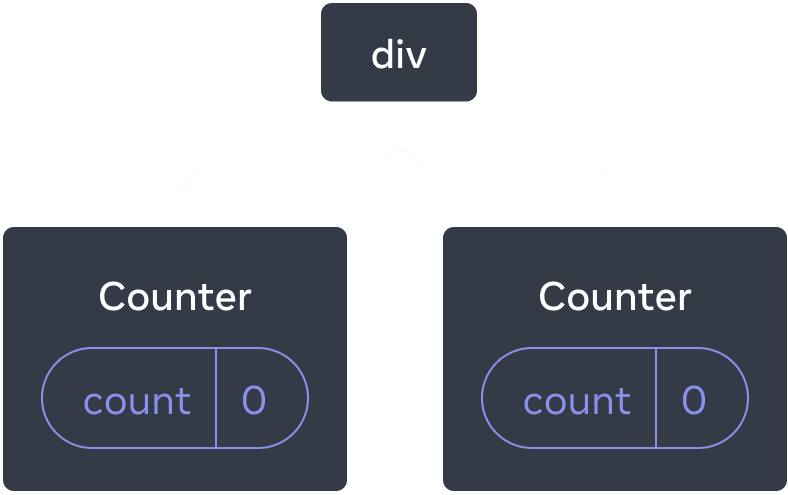
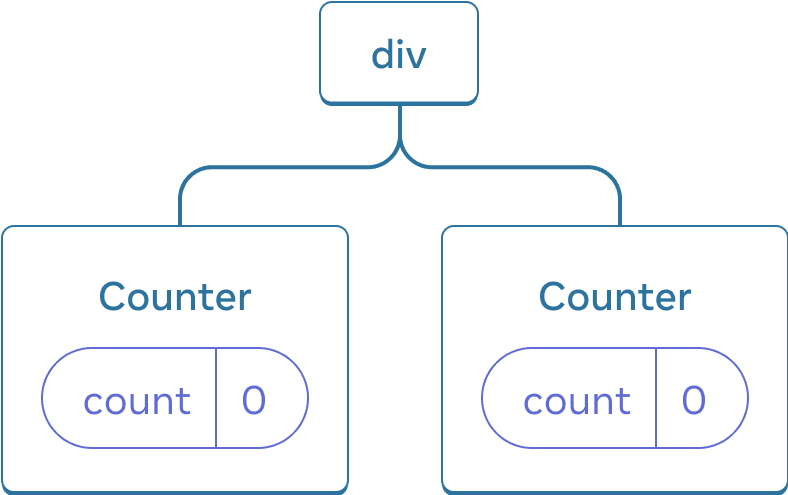
עץ React
אלו שני מונים נפרדים מכיוון שכל אחד מהם מוצג במיקום שלו בעץ. בדרך כלל לא צריך לחשוב על המיקומים האלה כדי use React, אבל זה יכול להיות use מלא כדי להבין איך זה עובד.
ב-React, כל רכיב על המסך בידד לחלוטין את state. לדוגמה, אם תעבדו שני רכיבי Counter זה לצד זה, כל אחד מהם יקבל score וhover state משלו, עצמאיים.
נסה ללחוץ על שני המונים ושימו לב שהם לא משפיעים זה על זה:
import { useState } from 'react';

export default function App() {
  return (
    <div>
      <Counter />
      <Counter />
    </div>
  );
}

function Counter() {
  const [score, setScore] = useState(0);
  const [hover, setHover] = useState(false);

  let className = 'counter';
  if (hover) {
    className += ' hover';
  }

  return (
    <div
      className={className}
      onPointerEnter={() => setHover(true)}
      onPointerLeave={() => setHover(false)}
    >
      <h1>{score}</h1>
      <button onClick={() => setScore(score + 1)}>
        Add one
      </button>
    </div>
  );
}
כפי שאתה יכול לראות, כאשר מונה אחד מתעדכן, רק ה-state עבור רכיב זה מתעדכן:
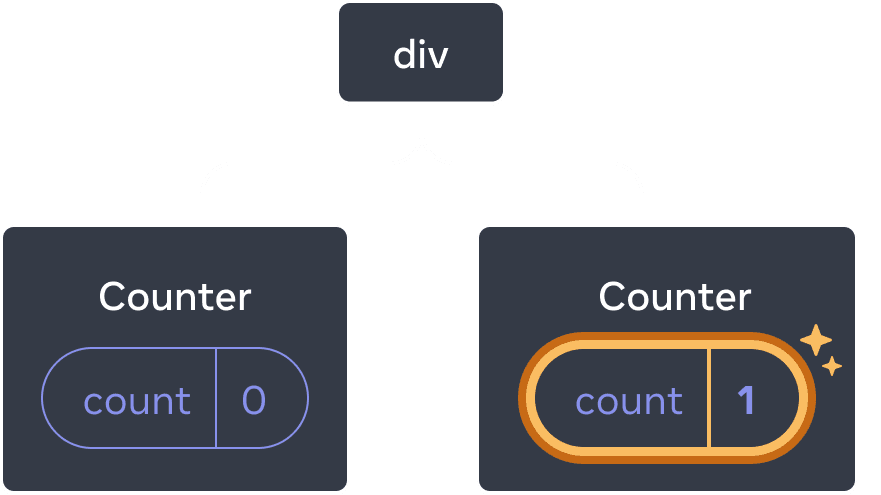
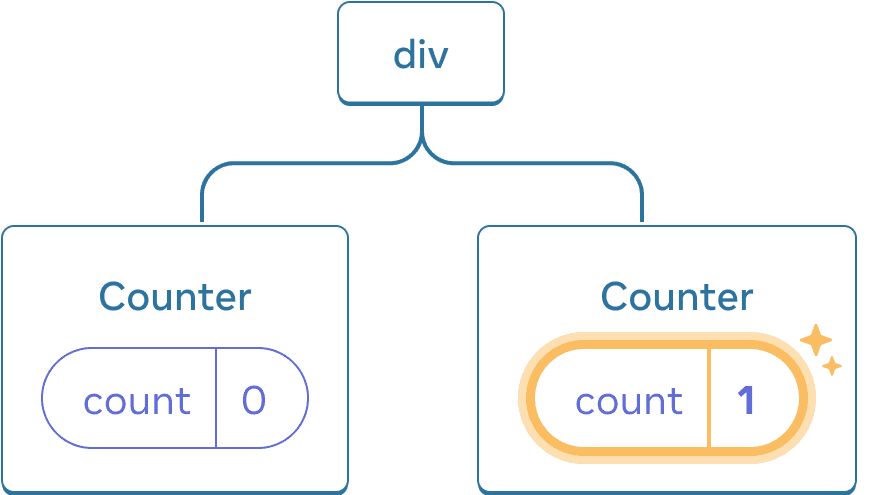
מעדכן את state
React ישמור את ה-state בסביבה כל עוד תעבד את אותו רכיב באותו מיקום בעץ. כדי לראות זאת, הגדל את שני המונים, ולאחר מכן הסר את הרכיב השני על ידי ביטול הסימון של תיבת הסימון “רנד את המונה השני”, ולאחר מכן הוסף אותו בחזרה על ידי סימון זה שוב:
import { useState } from 'react';

export default function App() {
  const [showB, setShowB] = useState(true);
  return (
    <div>
      <Counter />
      {showB && <Counter />}
      <label>
        <input
          type="checkbox"
          checked={showB}
          onChange={e => {
            setShowB(e.target.checked)
          }}
        />
        Render the second counter
      </label>
    </div>
  );
}

function Counter() {
  const [score, setScore] = useState(0);
  const [hover, setHover] = useState(false);

  let className = 'counter';
  if (hover) {
    className += ' hover';
  }

  return (
    <div
      className={className}
      onPointerEnter={() => setHover(true)}
      onPointerLeave={() => setHover(false)}
    >
      <h1>{score}</h1>
      <button onClick={() => setScore(score + 1)}>
        Add one
      </button>
    </div>
  );
}
שימו לב איך ברגע שאתם מפסיקים לעבד את המונה השני, ה-state שלו נעלם לחלוטין. זה בגלל שuse כאשר React מסיר רכיב, הוא הורס את state שלו.
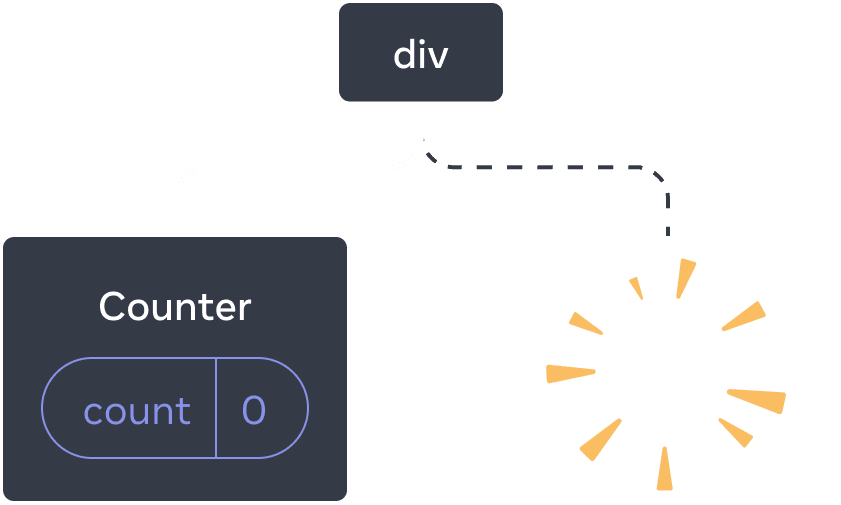
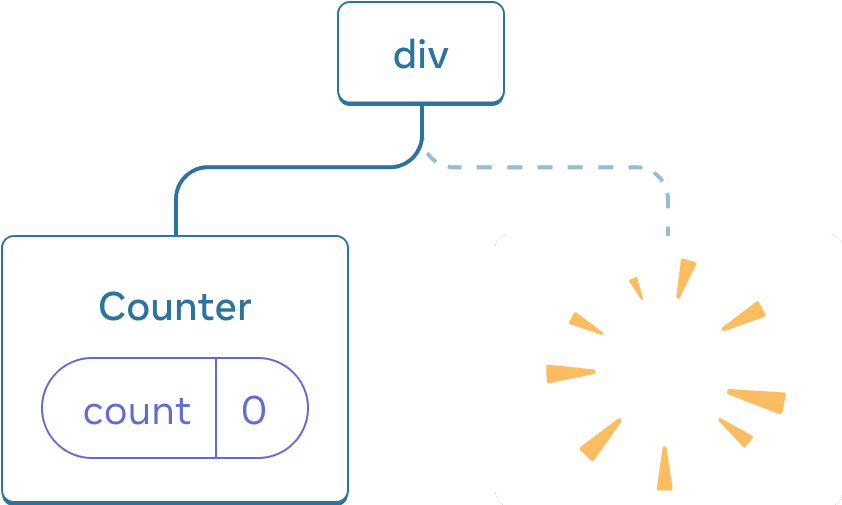
מחיקת רכיב
כאשר אתה מסמן “עיבוד המונה השני”, Counter שני וה-state שלו מאותחלים מאפס (score = 0) ומתווספים ל-DOM.
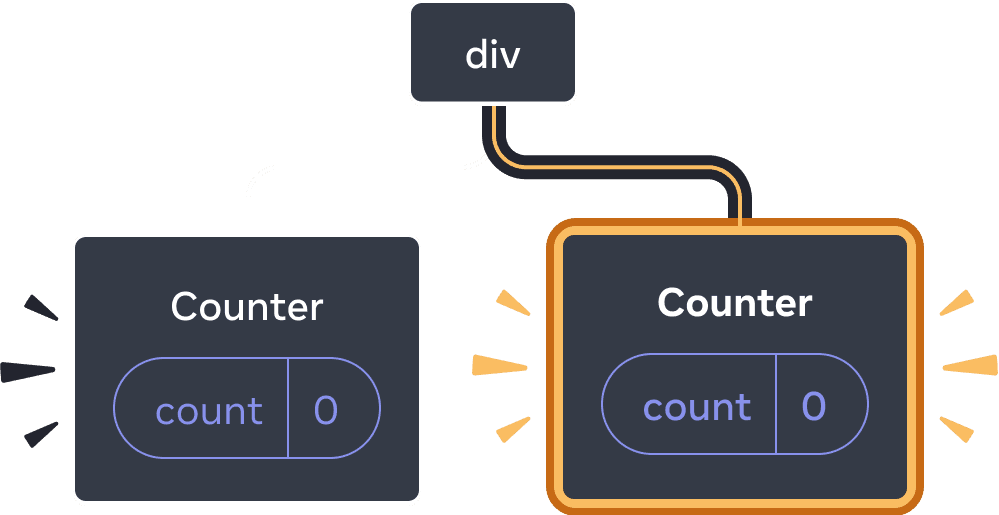
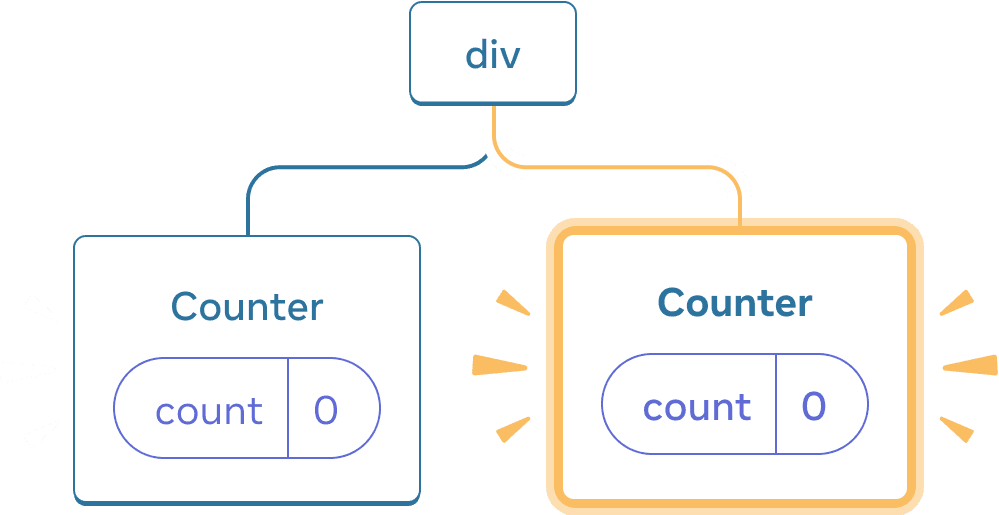
הוספת רכיב
React שומר על state של רכיב כל עוד הוא מוצג במיקום שלו בעץ ה-UI. אם הוא יוסר, או שרכיב אחר יעובד באותו מיקום, React משליך את state שלו.
אותו רכיב באותו מיקום שומר על state
בדוגמה זו, ישנם שני תגי <Counter /> שונים:
import { useState } from 'react';

export default function App() {
  const [isFancy, setIsFancy] = useState(false);
  return (
    <div>
      {isFancy ? (
        <Counter isFancy={true} />
      ) : (
        <Counter isFancy={false} />
      )}
      <label>
        <input
          type="checkbox"
          checked={isFancy}
          onChange={e => {
            setIsFancy(e.target.checked)
          }}
        />
        Use fancy styling
      </label>
    </div>
  );
}

function Counter({ isFancy }) {
  const [score, setScore] = useState(0);
  const [hover, setHover] = useState(false);

  let className = 'counter';
  if (hover) {
    className += ' hover';
  }
  if (isFancy) {
    className += ' fancy';
  }

  return (
    <div
      className={className}
      onPointerEnter={() => setHover(true)}
      onPointerLeave={() => setHover(false)}
    >
      <h1>{score}</h1>
      <button onClick={() => setScore(score + 1)}>
        Add one
      </button>
    </div>
  );
}
כאשר אתה מסמן או מנקה את תיבת הסימון, המונה state לא מתאפס. בין אם isFancy הוא true או false, תמיד יש לך <Counter /> בתור הילד הראשון של div שהוחזר ממרכיב השורש App:
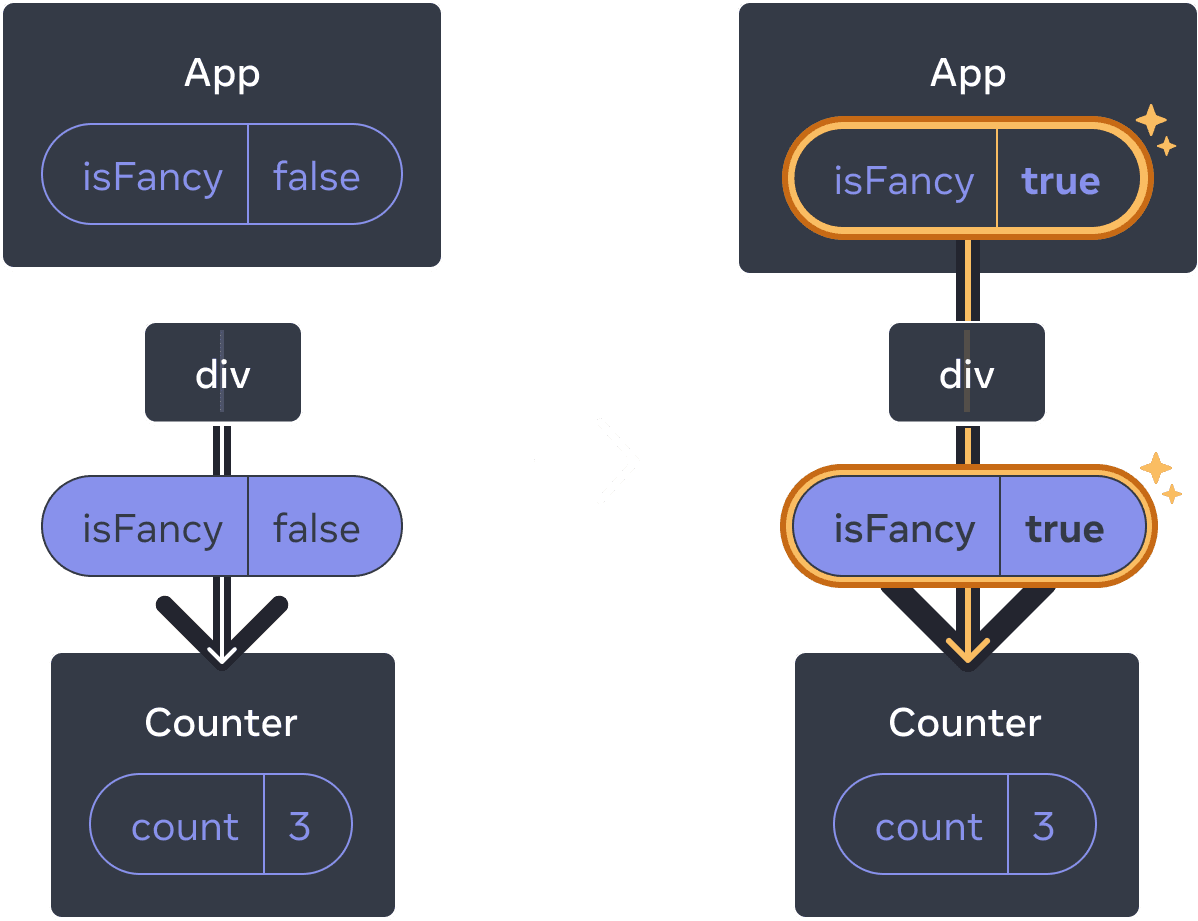
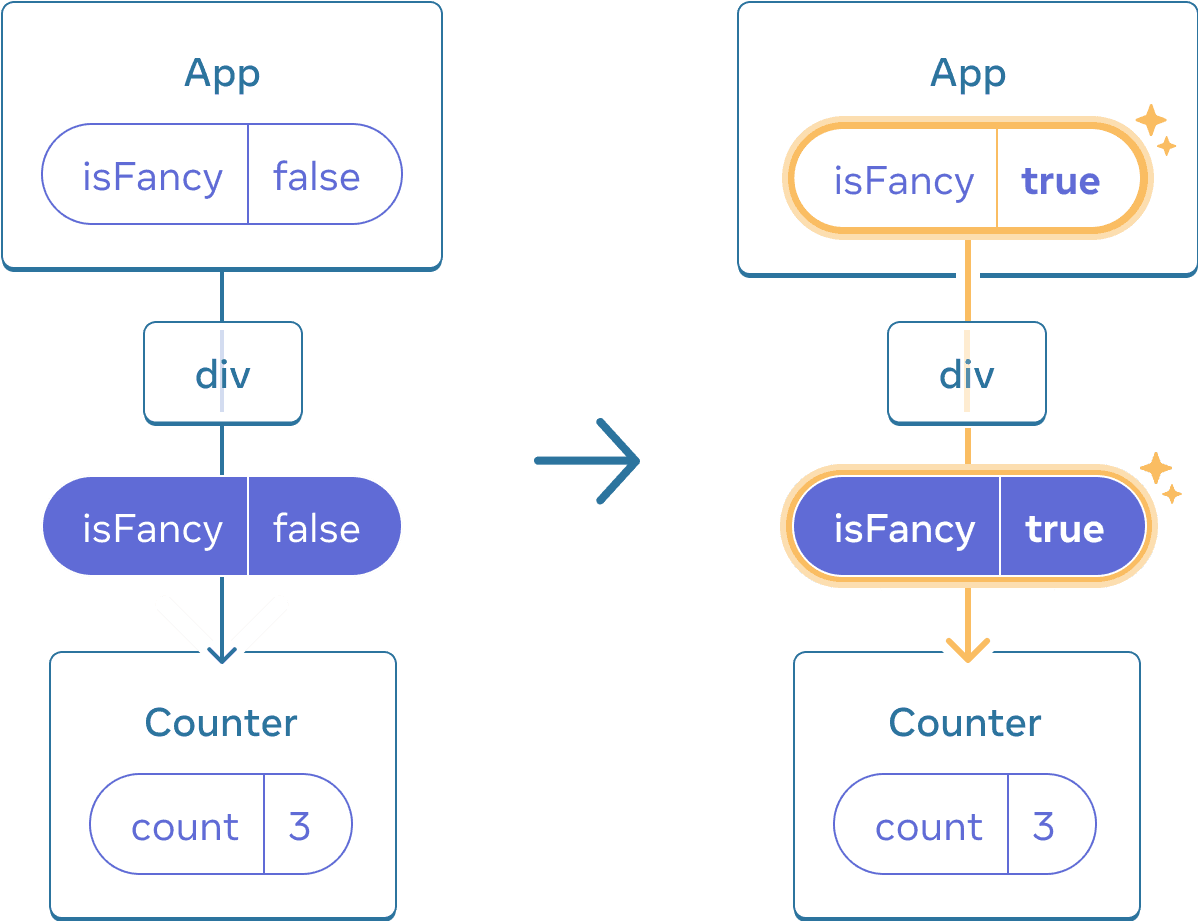
עדכון ה-App state אינו מאפס את ה-Counter שכןuse Counter נשאר באותו מיקום
זה אותו רכיב באותו מיקום, אז מנקודת המבט של React, זה אותו מונה.
רכיבים שונים באותו מיקום איפוס state
בדוגמה זו, סימון תיבת הסימון יחליף את <Counter> ב-<p>:
import { useState } from 'react';

export default function App() {
  const [isPaused, setIsPaused] = useState(false);
  return (
    <div>
      {isPaused ? (
        <p>See you later!</p>
      ) : (
        <Counter />
      )}
      <label>
        <input
          type="checkbox"
          checked={isPaused}
          onChange={e => {
            setIsPaused(e.target.checked)
          }}
        />
        Take a break
      </label>
    </div>
  );
}

function Counter() {
  const [score, setScore] = useState(0);
  const [hover, setHover] = useState(false);

  let className = 'counter';
  if (hover) {
    className += ' hover';
  }

  return (
    <div
      className={className}
      onPointerEnter={() => setHover(true)}
      onPointerLeave={() => setHover(false)}
    >
      <h1>{score}</h1>
      <button onClick={() => setScore(score + 1)}>
        Add one
      </button>
    </div>
  );
}
כאן, אתה עובר בין סוגי רכיבים שונים באותו מיקום. בתחילה, הילד הראשון של ה-<div> הכיל Counter. אבל כשהחלפת p, React הסיר את Counter מעץ ה-UI והרס את state שלו.
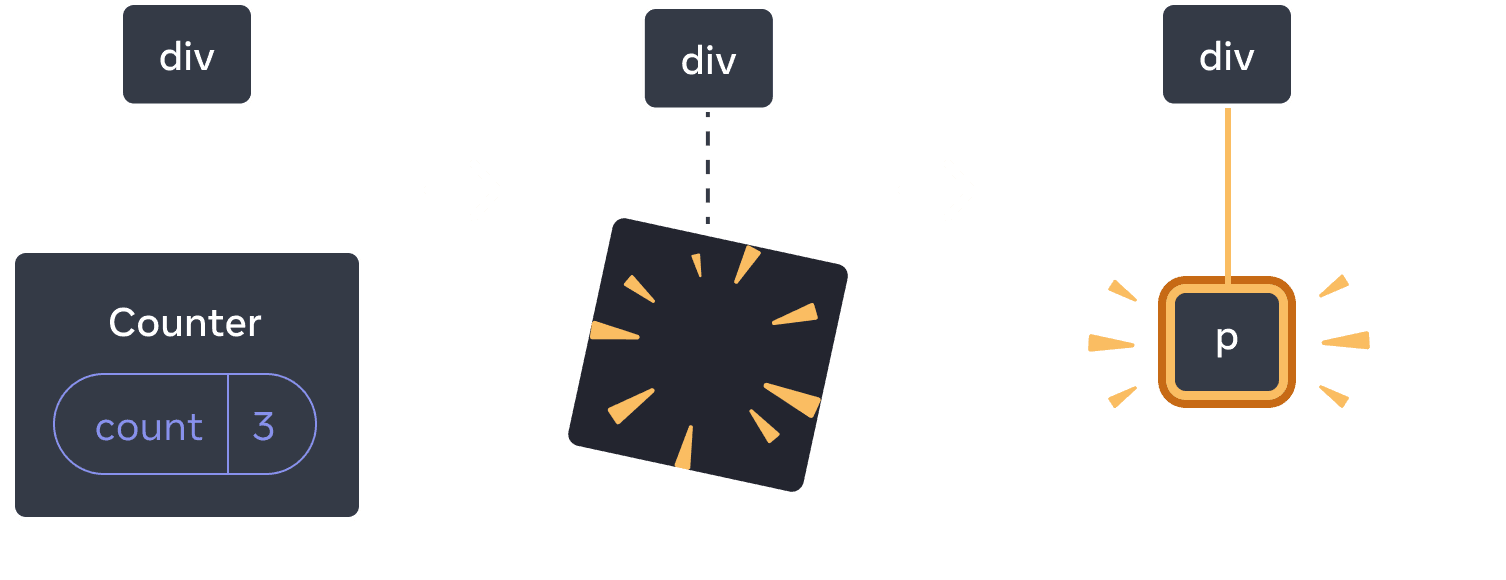
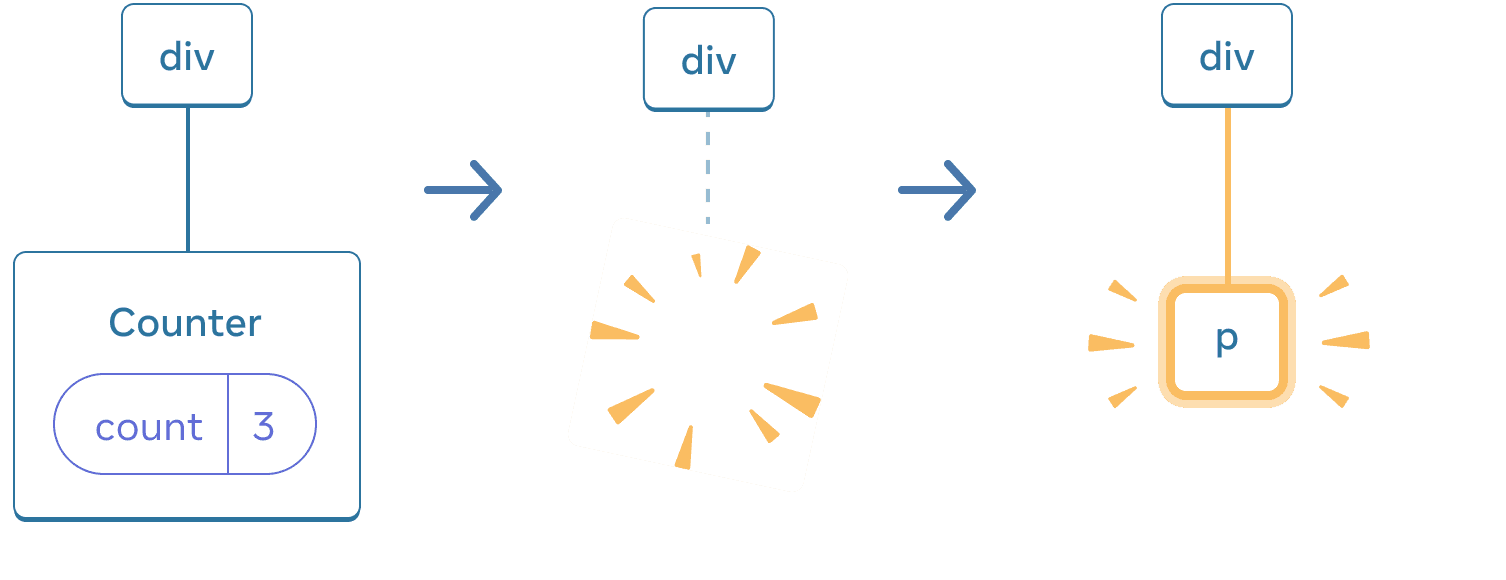
כאשר Counter משתנה ל-p, ה-Counter נמחק וה-p מתווסף
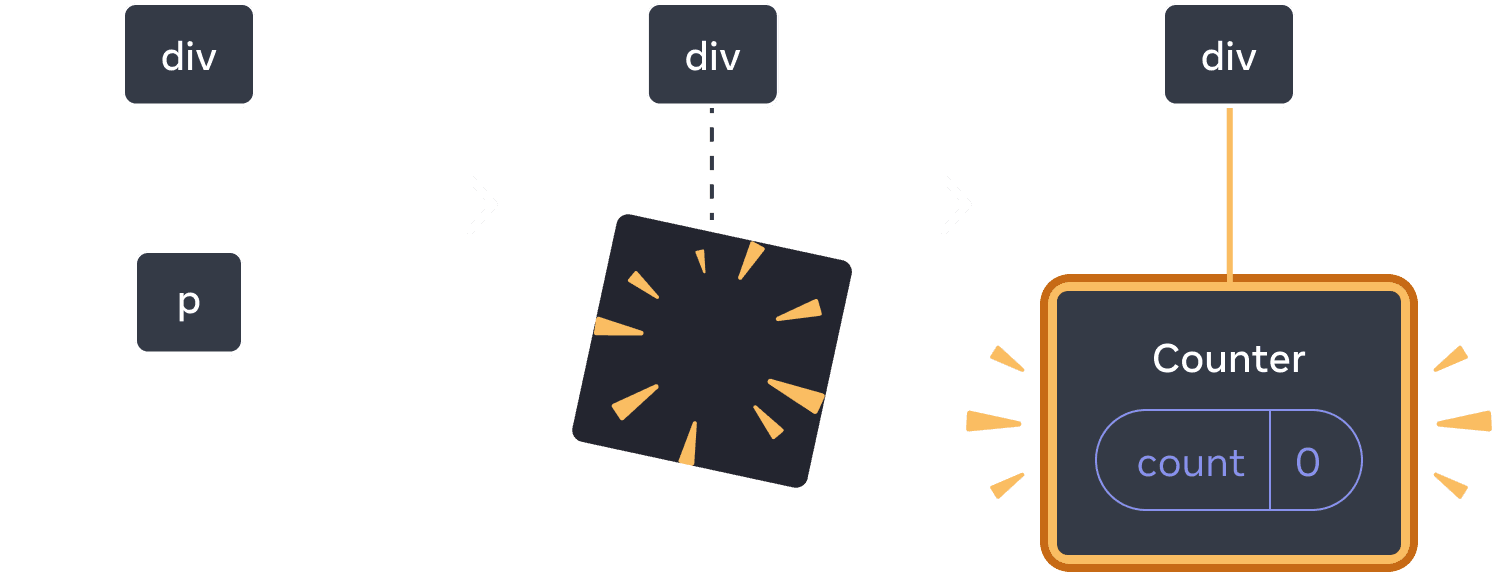
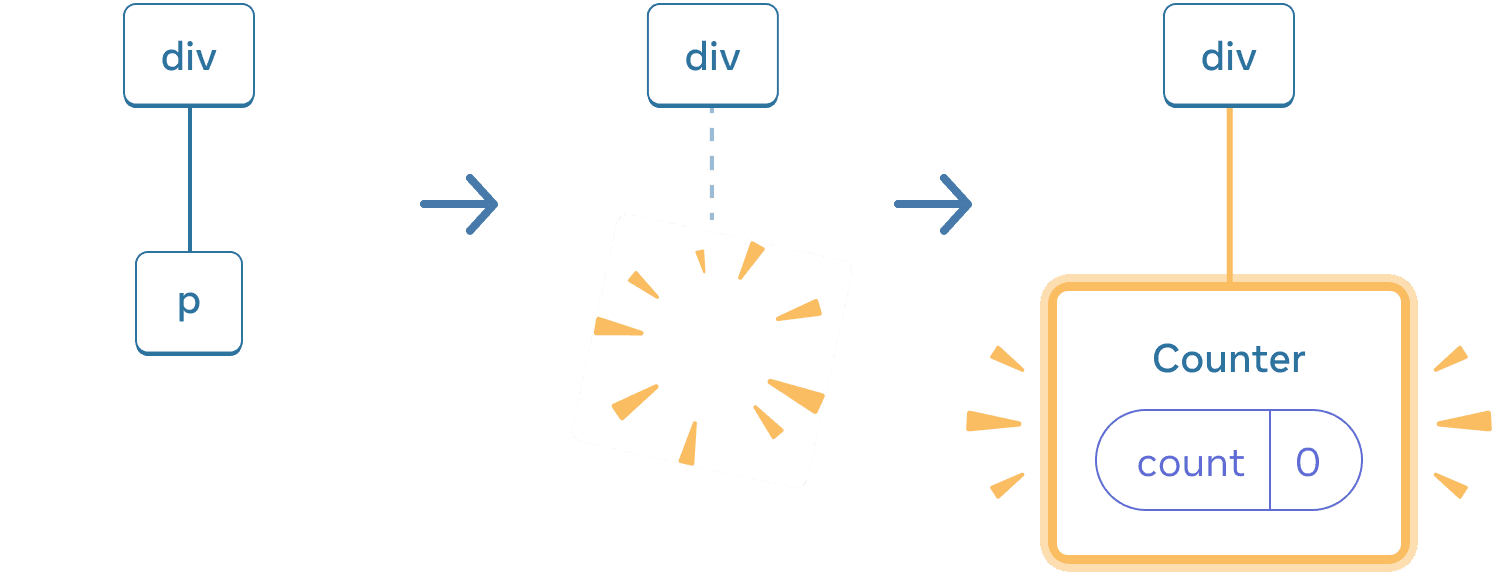
בעת המעבר חזרה, ה-p נמחק וה-Counter מתווסף
כמו כן, כאשר אתה מעבד רכיב אחר באותו מיקום, הוא מאפס את state של כל המשנה שלו. כדי לראות איך זה עובד, הגדל את המונה ולאחר מכן סמן את תיבת הסימון:
import { useState } from 'react';

export default function App() {
  const [isFancy, setIsFancy] = useState(false);
  return (
    <div>
      {isFancy ? (
        <div>
          <Counter isFancy={true} />
        </div>
      ) : (
        <section>
          <Counter isFancy={false} />
        </section>
      )}
      <label>
        <input
          type="checkbox"
          checked={isFancy}
          onChange={e => {
            setIsFancy(e.target.checked)
          }}
        />
        Use fancy styling
      </label>
    </div>
  );
}

function Counter({ isFancy }) {
  const [score, setScore] = useState(0);
  const [hover, setHover] = useState(false);

  let className = 'counter';
  if (hover) {
    className += ' hover';
  }
  if (isFancy) {
    className += ' fancy';
  }

  return (
    <div
      className={className}
      onPointerEnter={() => setHover(true)}
      onPointerLeave={() => setHover(false)}
    >
      <h1>{score}</h1>
      <button onClick={() => setScore(score + 1)}>
        Add one
      </button>
    </div>
  );
}
המונה state מתאפס כאשר אתה לוחץ על תיבת הסימון. למרות שאתה מעבד Counter, הצאצא הראשון של ה-div משתנה מ-div ל-section. כשהילד div הוסר מה-DOM, כל העץ שמתחתיו (כולל ה-Counter וה-state שלו) נהרס גם כן.
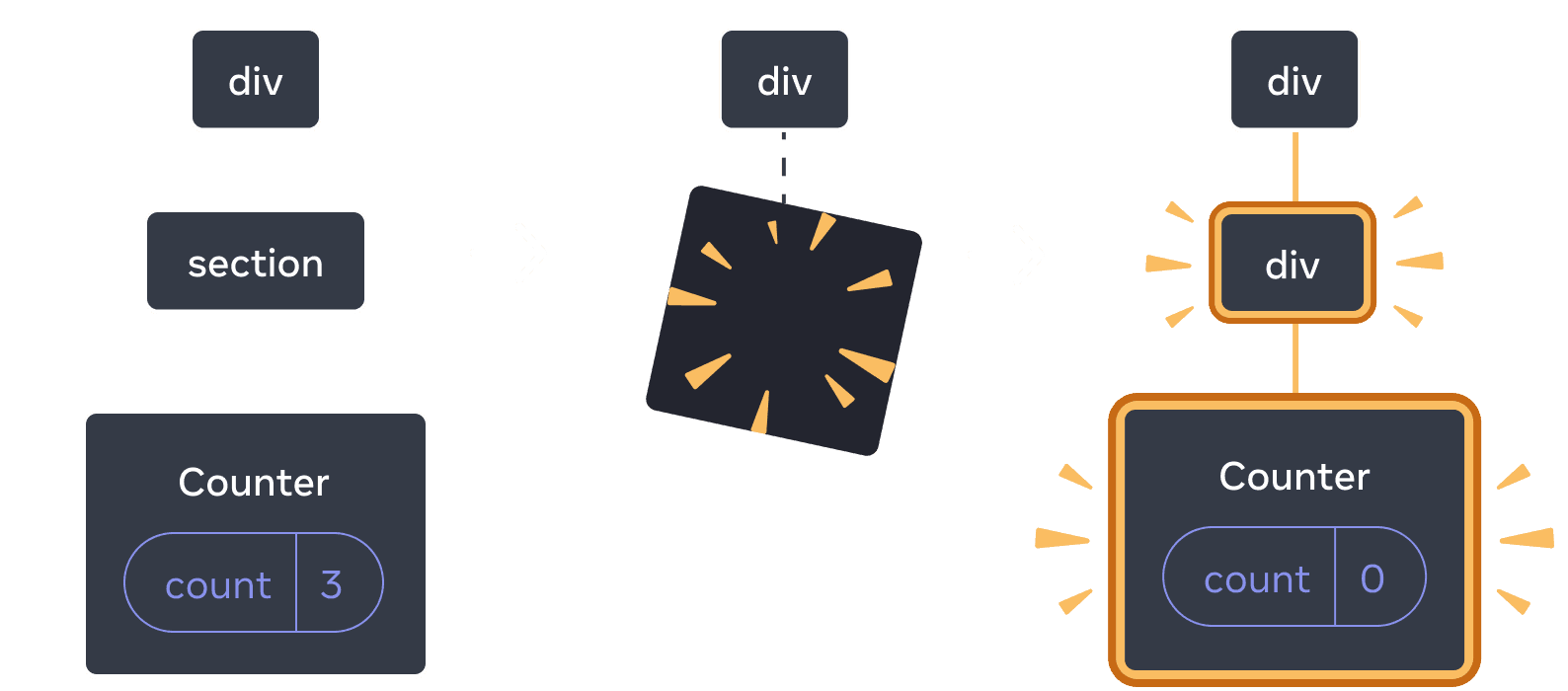
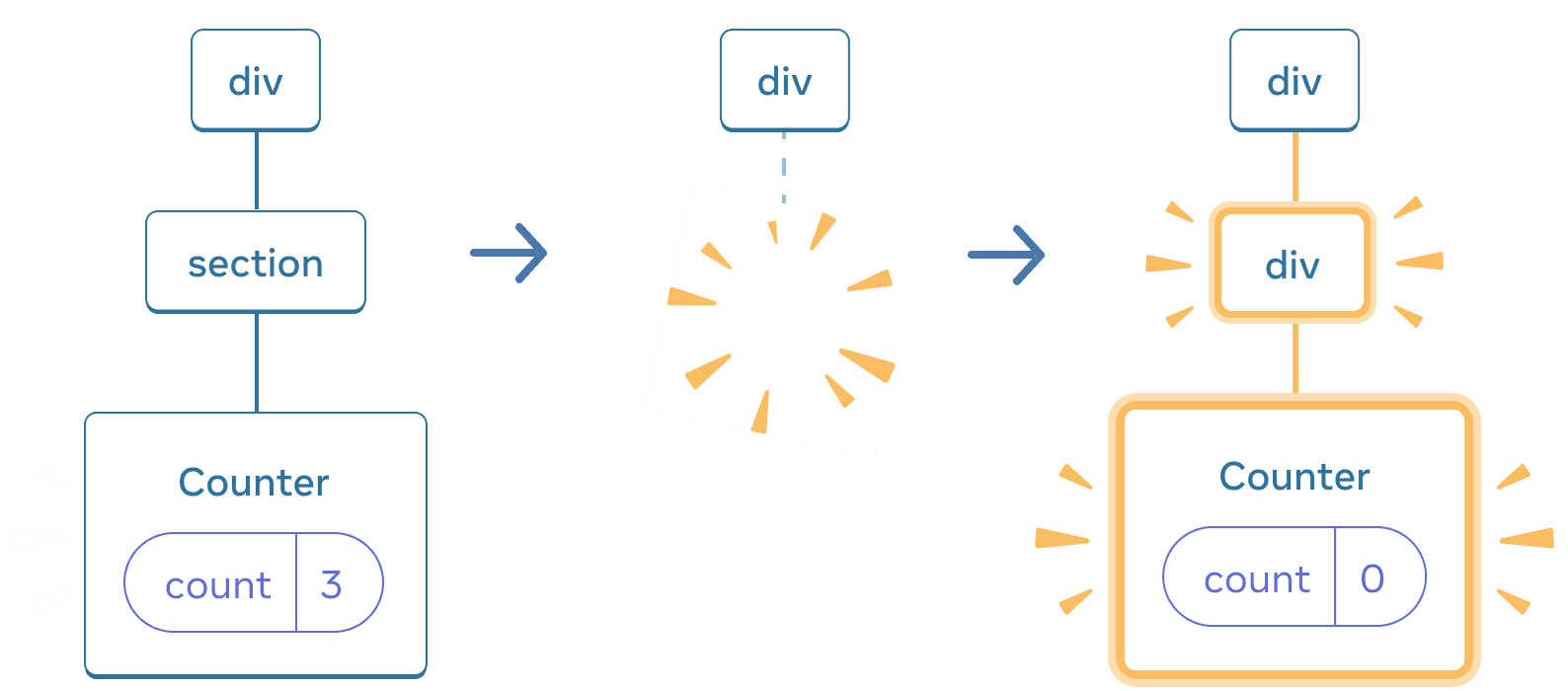
כאשר section משתנה ל-div, ה-section נמחק וה-div החדש מתווסף
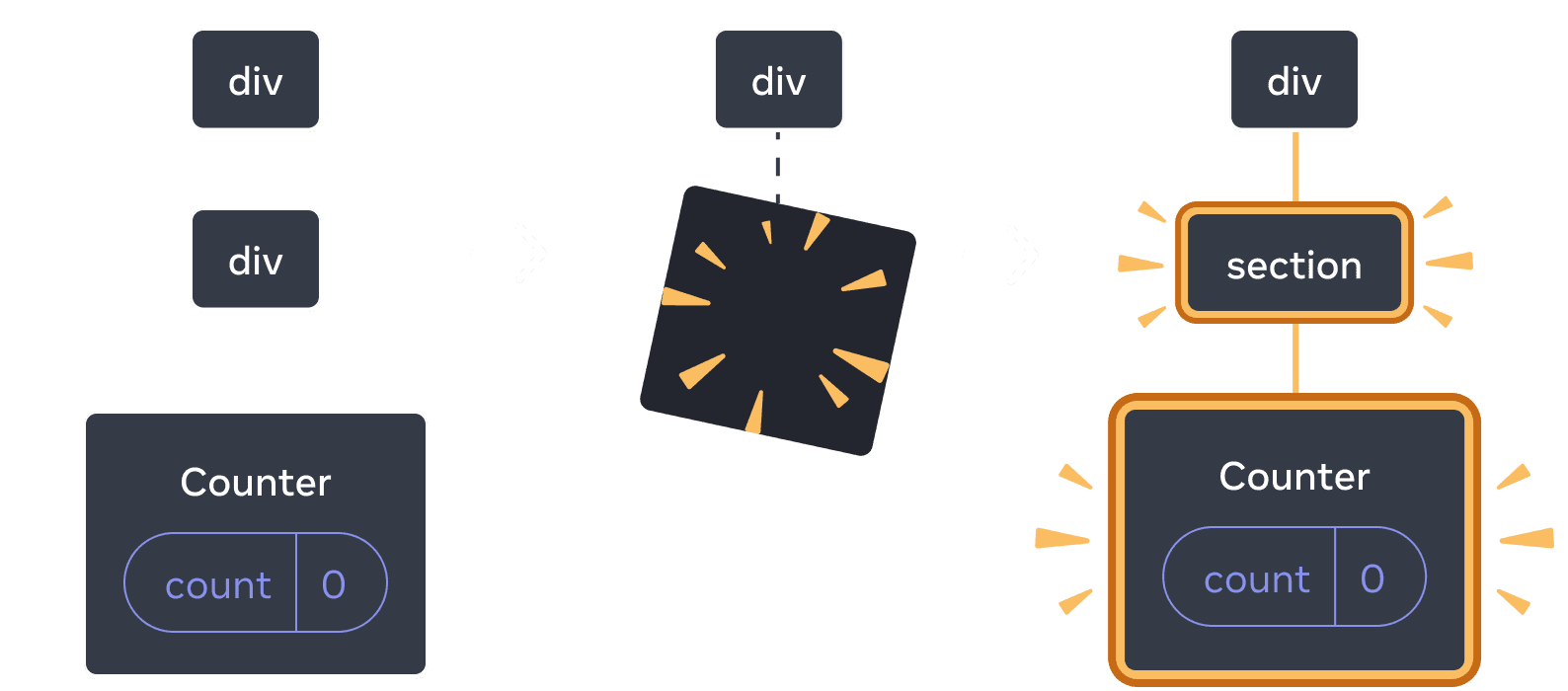
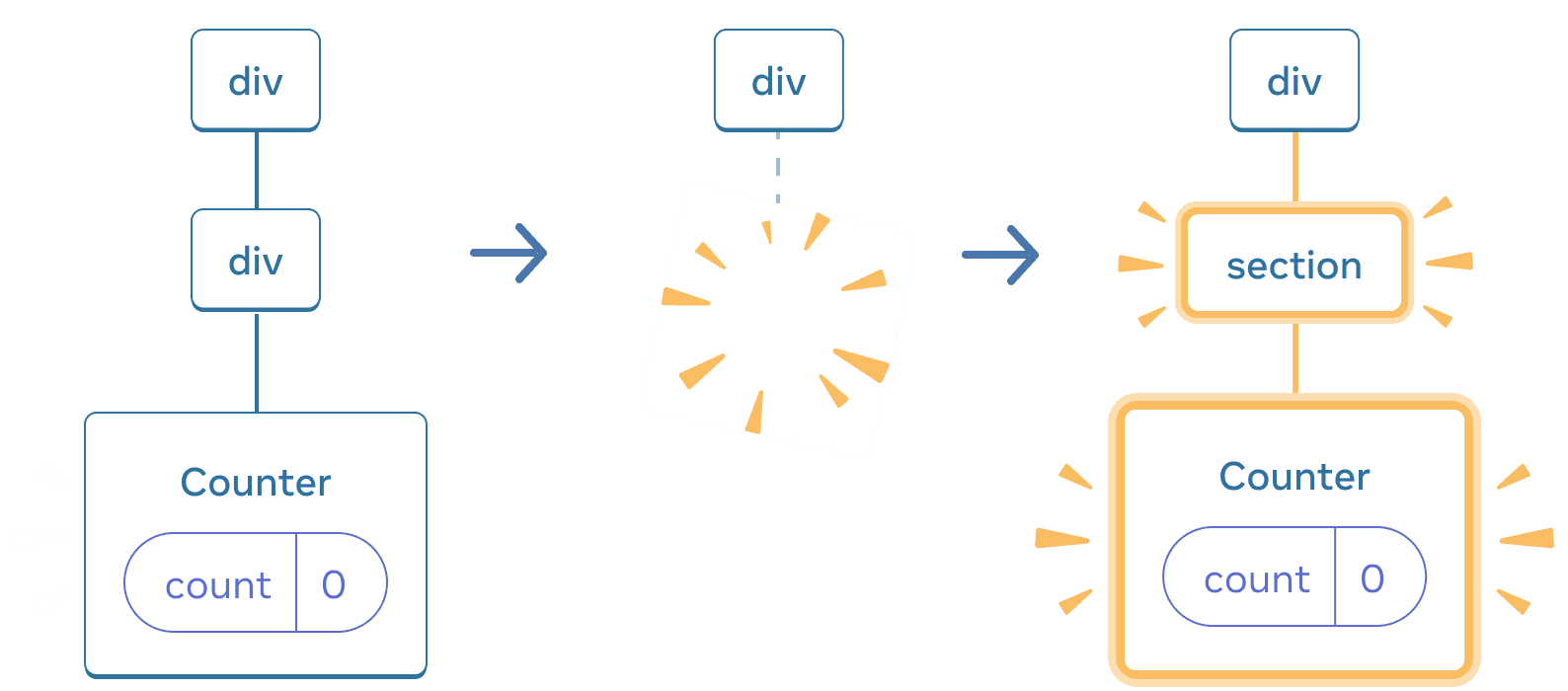
בעת המעבר חזרה, ה-div נמחק וה-section החדש מתווסף
ככלל אצבע, אם אתה רוצה לשמר את state בין רינדור מחדש, המבנה של העץ שלך צריך “להתאים” מעיבוד אחד למשנהו. אם המבנה שונה, ה-state נהרס מכיוון שuse React הורס את state כאשר הוא מסיר רכיב מהעץ.
איפוס state באותו מיקום
כברירת מחדל, React שומר על state של רכיב בזמן שהוא נשאר באותו מיקום. בדרך כלל, זה בדיוק מה שאתה רוצה, אז זה הגיוני בתור התנהגות ברירת המחדל. אבל לפעמים, ייתכן שתרצה לאפס את ה-state של רכיב. שקול את האפליקציה הזו המאפשרת לשני שחקנים לעקוב אחר התוצאות שלהם בכל תור:
import { useState } from 'react';

export default function Scoreboard() {
  const [isPlayerA, setIsPlayerA] = useState(true);
  return (
    <div>
      {isPlayerA ? (
        <Counter person="Taylor" />
      ) : (
        <Counter person="Sarah" />
      )}
      <button onClick={() => {
        setIsPlayerA(!isPlayerA);
      }}>
        Next player!
      </button>
    </div>
  );
}

function Counter({ person }) {
  const [score, setScore] = useState(0);
  const [hover, setHover] = useState(false);

  let className = 'counter';
  if (hover) {
    className += ' hover';
  }

  return (
    <div
      className={className}
      onPointerEnter={() => setHover(true)}
      onPointerLeave={() => setHover(false)}
    >
      <h1>{person}'s score: {score}</h1>
      <button onClick={() => setScore(score + 1)}>
        Add one
      </button>
    </div>
  );
}
נכון לעכשיו, כאשר אתה מחליף שחקן, הניקוד נשמר. שני Counters מופיעים באותו מיקום, אז React רואה אותם כזהה Counter שה-person שלו השתנה.
אבל מבחינה רעיונית, באפליקציה הזו הם צריכים להיות שני מונים נפרדים. הם עשויים להופיע באותו מקום בממשק המשתמש, אבל אחד הוא מונה עבור טיילור, ואחר הוא מונה עבור שרה.
ישנן שתי דרכים לאפס את state בעת המעבר ביניהן:
- עיבוד רכיבים במיקומים שונים
- תן לכל רכיב זהות מפורשת עם
key
אפשרות 1: עיבוד רכיב במיקומים שונים
אם אתה רוצה ששני Counters אלה יהיו עצמאיים, אתה יכול לעבד אותם בשתי עמדות שונות:
import { useState } from 'react';

export default function Scoreboard() {
  const [isPlayerA, setIsPlayerA] = useState(true);
  return (
    <div>
      {isPlayerA &&
        <Counter person="Taylor" />
      }
      {!isPlayerA &&
        <Counter person="Sarah" />
      }
      <button onClick={() => {
        setIsPlayerA(!isPlayerA);
      }}>
        Next player!
      </button>
    </div>
  );
}

function Counter({ person }) {
  const [score, setScore] = useState(0);
  const [hover, setHover] = useState(false);

  let className = 'counter';
  if (hover) {
    className += ' hover';
  }

  return (
    <div
      className={className}
      onPointerEnter={() => setHover(true)}
      onPointerLeave={() => setHover(false)}
    >
      <h1>{person}'s score: {score}</h1>
      <button onClick={() => setScore(score + 1)}>
        Add one
      </button>
    </div>
  );
}
- בתחילה,
isPlayerAהואtrue. אז המיקום הראשון מכילCounterstate, והשנייה ריקה. - כאשר אתה לוחץ על כפתור “השחקן הבא” המיקום הראשון מתבטל אך השני מכיל כעת
Counter.
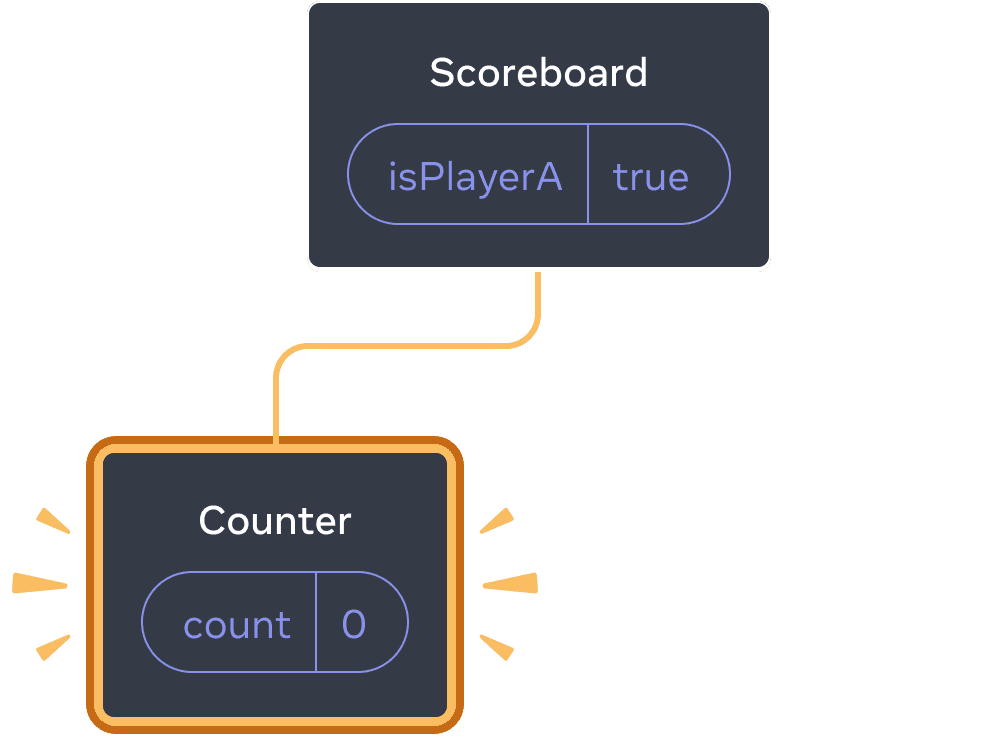
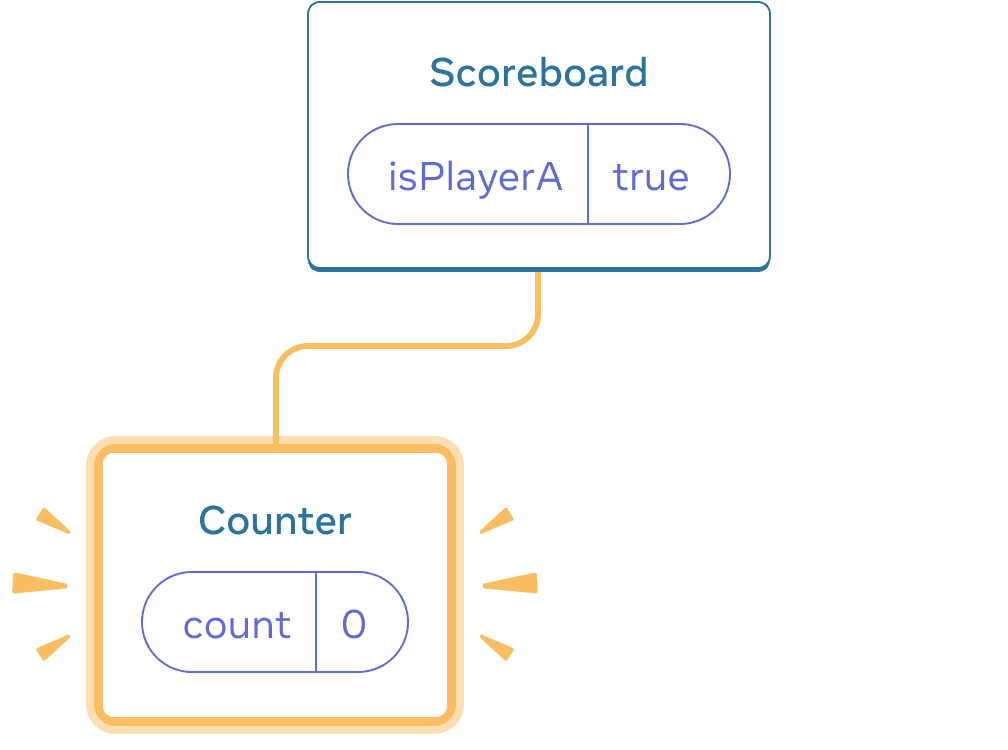
state ראשוני
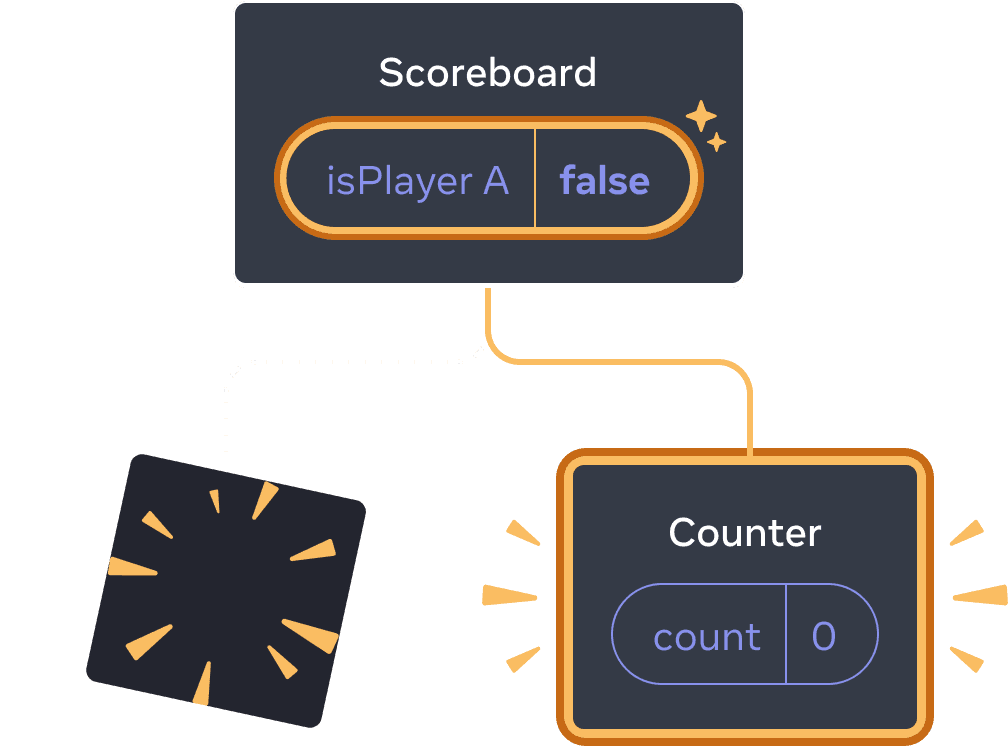
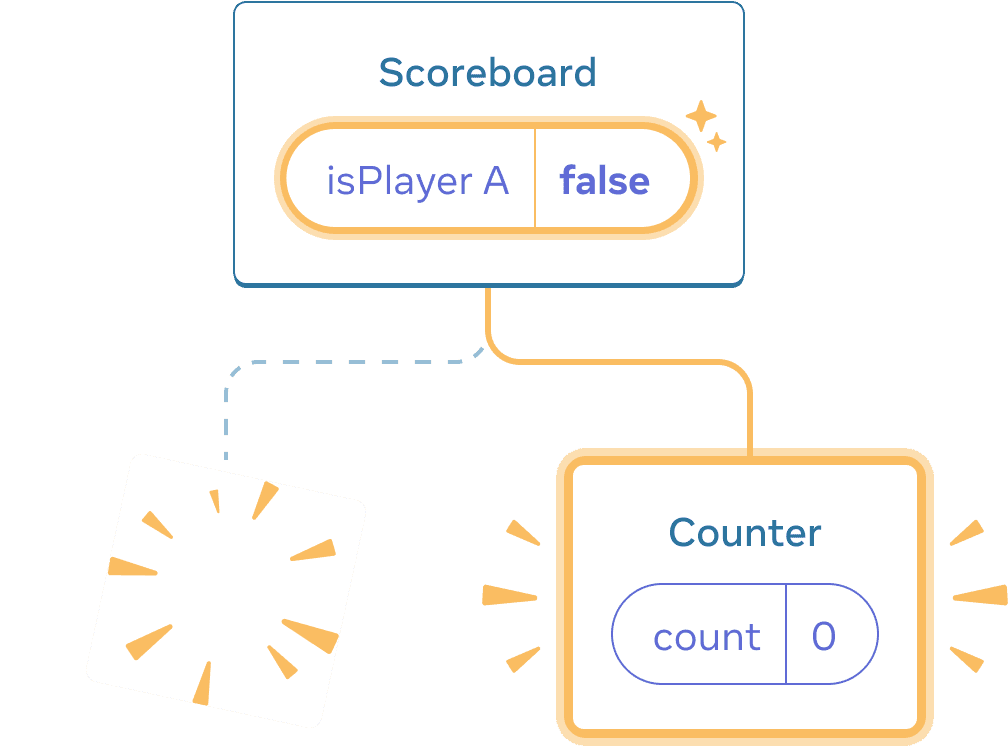
לחיצה על “הבא”
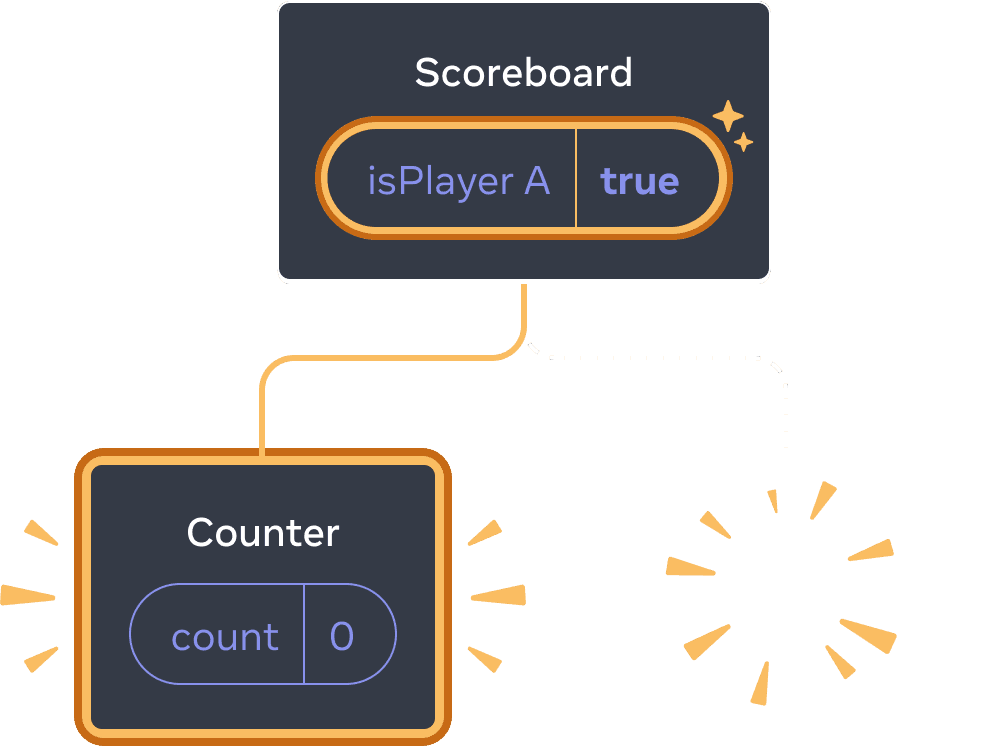
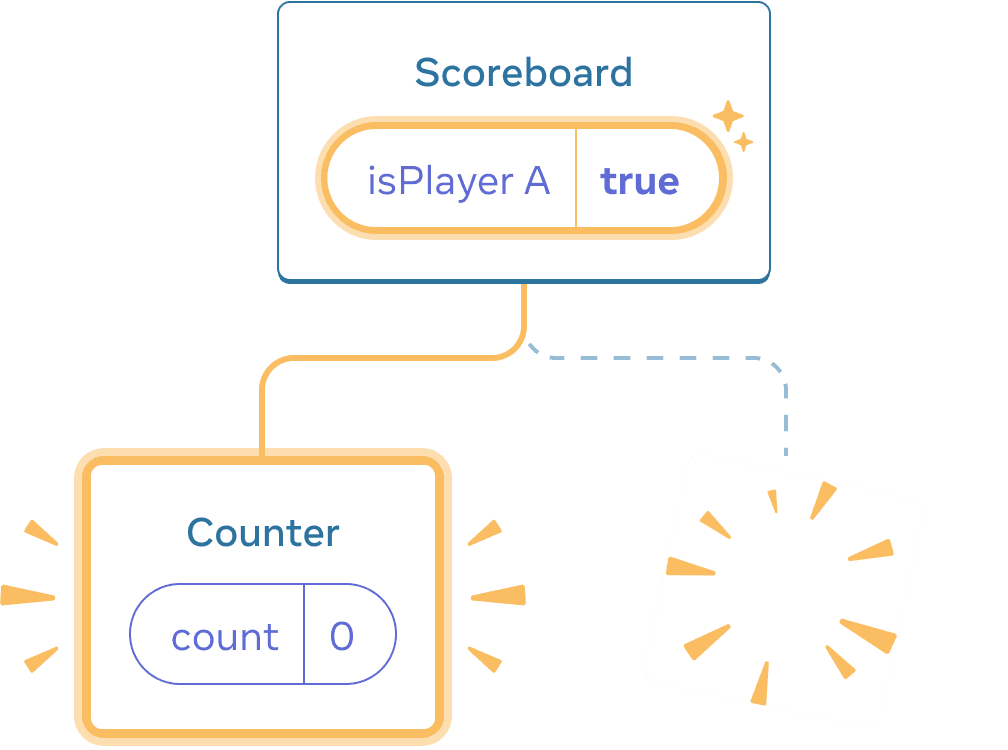
לוחצים שוב על “הבא”.
state של כל Counter מושמד בכל פעם שהוא מוסר מה-DOM. זו הסיבה שהם מתאפסים בכל פעם שאתה לוחץ על הכפתור.
פתרון זה נוח כאשר יש לך רק כמה רכיבים עצמאיים המעובדים באותו מקום. בדוגמה זו, יש לך רק שניים, כך שזה לא טרחה לעבד את שניהם בנפרד ב-JSX.
אפשרות 2: איפוס state עם מפתח
ישנה גם דרך נוספת, גנרית יותר, לאפס את ה-state של רכיב.
אולי ראית keys כאשר עיבוד רשימות. מפתחות אינם מיועדים רק לרשימות! אתה יכול use מפתחות כדי לגרום לReact להבחין בין כל רכיב. כברירת מחדל, הסדר של React use בתוך האב (“מונה ראשון”, “מונה שני”) כדי להבחין בין רכיבים. אבל מקשים מאפשרים לך לומר ל-React שזה לא רק מונה ראשון, או מונה שני, אלא מונה ספציפי - למשל, המונה של טיילור. כך, React יכיר את המונה של טיילור בכל מקום שהוא מופיע בעץ!
בדוגמה זו, שני <Counter />s אינם חולקים state למרות שהם מופיעים באותו מקום ב-JSX:
import { useState } from 'react';

export default function Scoreboard() {
  const [isPlayerA, setIsPlayerA] = useState(true);
  return (
    <div>
      {isPlayerA ? (
        <Counter key="Taylor" person="Taylor" />
      ) : (
        <Counter key="Sarah" person="Sarah" />
      )}
      <button onClick={() => {
        setIsPlayerA(!isPlayerA);
      }}>
        Next player!
      </button>
    </div>
  );
}

function Counter({ person }) {
  const [score, setScore] = useState(0);
  const [hover, setHover] = useState(false);

  let className = 'counter';
  if (hover) {
    className += ' hover';
  }

  return (
    <div
      className={className}
      onPointerEnter={() => setHover(true)}
      onPointerLeave={() => setHover(false)}
    >
      <h1>{person}'s score: {score}</h1>
      <button onClick={() => setScore(score + 1)}>
        Add one
      </button>
    </div>
  );
}
מעבר בין טיילור לשרה אינו משמר את ה-state. זה בגללuse נתת להם keys שונים:
{isPlayerA ? (
  <Counter key="Taylor" person="Taylor" />
) : (
  <Counter key="Sarah" person="Sarah" />
)}
ציון key אומר React לuse את key עצמו כחלק מהעמדה, במקום הסדר שלהם בתוך האב. זו הסיבה שלמרות שאתה מציג אותם באותו מקום ב-JSX, React רואה אותם כשני מונים שונים, ולכן הם לעולם לא ישתפו את state. בכל פעם שמונה מופיע על המסך, ה-state שלו נוצר. בכל פעם שהוא מוסר, ה-state שלו מושמד. החלפה ביניהם מאפסת את state שלהם שוב ושוב.
איפוס טופס עם מפתח
איפוס state עם מפתח הוא use מלא במיוחד כאשר עוסקים בטפסים.
באפליקציית הצ’אט הזו, הרכיב <Chat> מכיל את קלט הטקסט state:
import { useState } from 'react';
import Chat from './Chat.js';
import ContactList from './ContactList.js';

export default function Messenger() {
  const [to, setTo] = useState(contacts[0]);
  return (
    <div>
      <ContactList
        contacts={contacts}
        selectedContact={to}
        onSelect={contact => setTo(contact)}
      />
      <Chat contact={to} />
    </div>
  )
}

const contacts = [
  { id: 0, name: 'Taylor', email: 'taylor@mail.com' },
  { id: 1, name: 'Alice', email: 'alice@mail.com' },
  { id: 2, name: 'Bob', email: 'bob@mail.com' }
];
נסה להזין משהו בקלט, ולאחר מכן לחץ על “אליס” או “בוב” כדי לבחור נמען אחר. תבחין שהקלט state נשמר מכיוון שuse ה-<Chat> מוצג באותו מיקום בעץ.
באפליקציות רבות, זו עשויה להיות ההתנהגות הרצויה, אבל לא באפליקציית צ’אט! אינך רוצה לתת ל-user לשלוח הודעה שהוא כבר הקליד לאדם שגוי עקב לחיצה מקרית. כדי לתקן את זה, הוסף key:
<Chat key={to.id} contact={to} />זה מבטיח שכאשר אתה בוחר נמען אחר, הרכיב Chat ייווצר מחדש מאפס, כולל כל state בעץ שמתחתיו. React גם יצור מחדש את האלמנטים DOM במקום לעשות בהם שימוש חוזר.
כעת החלפת הנמען תמיד מנקה את שדה הטקסט:
import { useState } from 'react';
import Chat from './Chat.js';
import ContactList from './ContactList.js';

export default function Messenger() {
  const [to, setTo] = useState(contacts[0]);
  return (
    <div>
      <ContactList
        contacts={contacts}
        selectedContact={to}
        onSelect={contact => setTo(contact)}
      />
      <Chat key={to.id} contact={to} />
    </div>
  )
}

const contacts = [
  { id: 0, name: 'Taylor', email: 'taylor@mail.com' },
  { id: 1, name: 'Alice', email: 'alice@mail.com' },
  { id: 2, name: 'Bob', email: 'bob@mail.com' }
];
Deep Dive
באפליקציית צ’אט אמיתית, סביר להניח שתרצה לשחזר את הקלט state כאשר ה-user יבחר שוב את הנמען הקודם. ישנן מספר דרכים לשמור על ה-state “חי” עבור רכיב שאינו גלוי עוד:
- אתה יכול להציג את כל הצ’אטים במקום רק את הנוכחי, אבל להסתיר את כל האחרים עם CSS. הצ’אטים לא יוסרו מהעץ, כך שה-state המקומי שלהם יישמר. פתרון זה עובד נהדר עבור ממשקי משתמש פשוטים. אבל זה יכול להיות איטי מאוד אם העצים המוסתרים גדולים ומכילים הרבה צמתים DOM.
- תוכל להרים את state למעלה ולהחזיק את ההודעה הממתינה עבור כל נמען ברכיב האב. בדרך זו, כאשר רכיבי הצאצא מוסרים, זה לא משנה, כי use זה ההורה ששומר את המידע החשוב. זהו הפתרון הנפוץ ביותר.
- אתה יכול גם use מקור אחר בנוסף ל-React state. לדוגמה, אתה כנראה רוצה שטיוטת הודעה תימשך גם אם ה-user סוגר בטעות את הדף. כדי ליישם זאת, אתה יכול לגרום לרכיב
Chatלאתחל את ה-state שלו על ידי קריאה מה-localStorage, ולשמור את הטיוטות גם שם.
לא משנה באיזו אסטרטגיה תבחר, צ’אט עם אליס נבדל רעיונית מצ’אט עם בוב, ולכן הגיוני לתת key לעץ <Chat> על סמך הנמען הנוכחי.
Recap
- React שומר על state כל עוד אותו רכיב מוצג באותו מיקום.
- המדינה לא נשמרת בתגיות JSX. זה משויך למיקום העץ שבו אתה שם את ה-JSX הזה.
- אתה יכול לאלץ תת-עץ לאפס את state שלו על ידי מתן מפתח אחר.
- אל תקנן הגדרות של רכיבים, אחרת תאפס את state בטעות.
Challenge 1 of 5: תקן טקסט קלט נעלם
דוגמה זו מציגה הודעה כאשר אתה לוחץ על הכפתור. עם זאת, לחיצה על הכפתור גם מאפסת בטעות את הקלט. למה זה קורה? תקן זאת כך שלחיצה על הכפתור לא תאפס את טקסט הקלט.
import { useState } from 'react';

export default function App() {
  const [showHint, setShowHint] = useState(false);
  if (showHint) {
    return (
      <div>
        <p><i>Hint: Your favorite city?</i></p>
        <Form />
        <button onClick={() => {
          setShowHint(false);
        }}>Hide hint</button>
      </div>
    );
  }
  return (
    <div>
      <Form />
      <button onClick={() => {
        setShowHint(true);
      }}>Show hint</button>
    </div>
  );
}

function Form() {
  const [text, setText] = useState('');
  return (
    <textarea
      value={text}
      onChange={e => setText(e.target.value)}
    />
  );
}